Overview of the Template Score Updater
This tool updates scores in XML templates by selecting a specific type or matching text optionally. Upload your XML file, specify criteria, and download the updated file effortlessly for streamlined XML management.
You can check the below GIF
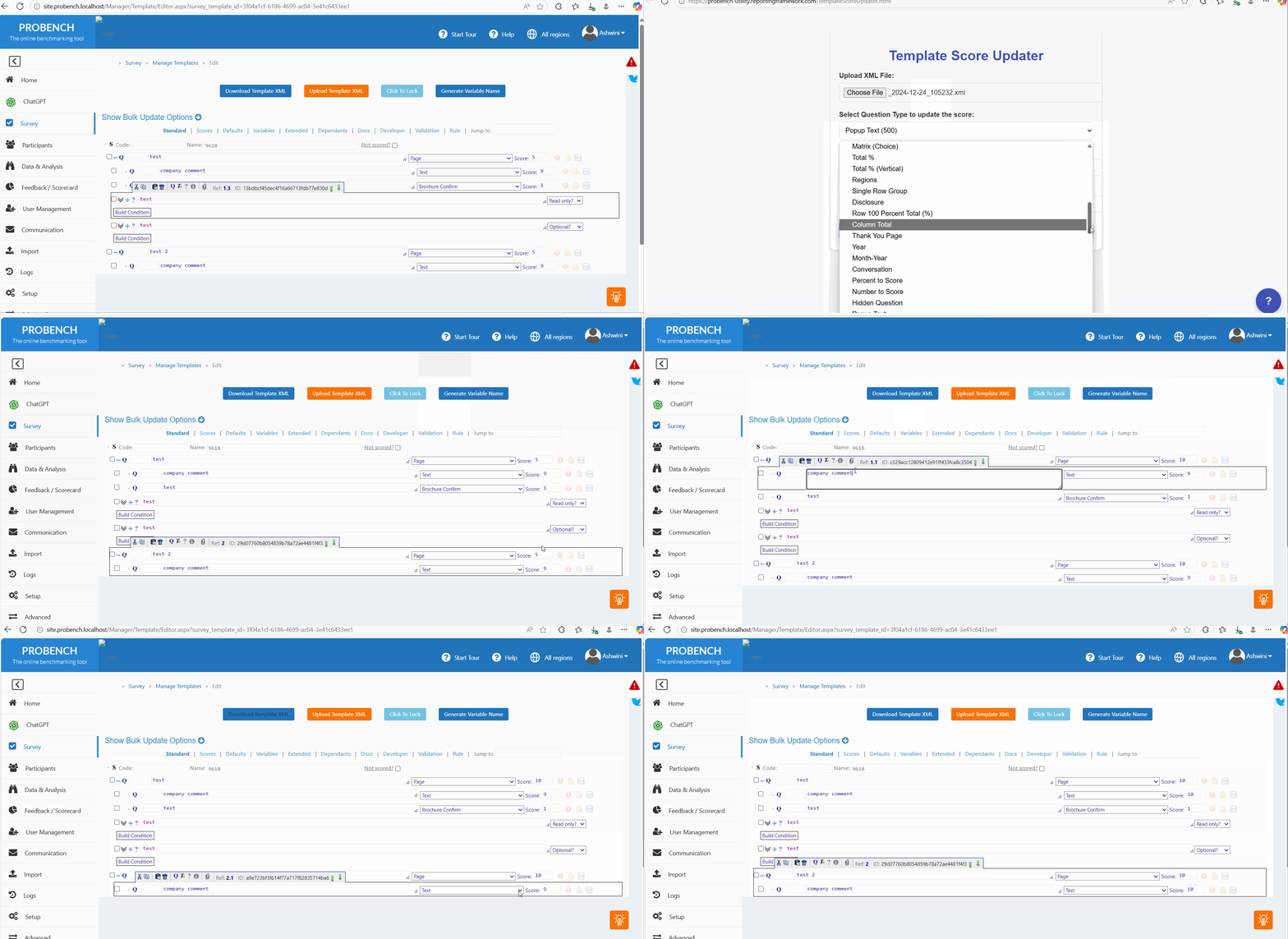
📄 XML File Upload
Upload your XML file to begin the update process.
📑 Type Selection
Select the type of element you want to update.
📁 Update Child Elements
Enable the "Add score for child of selected question type" option to apply scores to both the selected type and all its child elements.
🖉 Score Updates
Enter scores dynamically to update relevant elements.
📝 Text Matching
Use text matching for precise updates.
💾 File Download
Download the updated XML file after processing.